Optimizing Audio & Video with Media Center Edition
The A/V performance of a Media Center PC can rival the most expensive solutions in the CE space. All the tools are there, you just have to know how to use them.
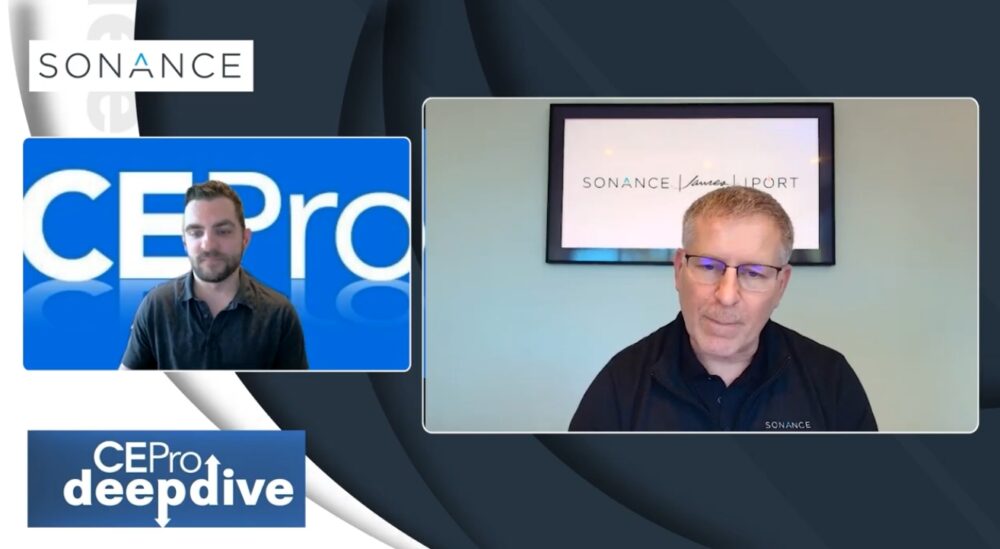
Mike Seamons demonstrates the Video Calibration Wizard. If the balls are round and the chalk is square, then the aspect ratio is correct.
In a perfect media room, the simplicity of operation matches the elegance of the audio/video experience. Professional home systems integrators achieve such perfection time and time again, with tried and true consumer electronics gear.
Yet such achievements come at a price -- literally. They can be very expensive, considering the cost of myriad high-performance components and the complexity of integration. Most A/V specialists go to great lengths to choose their sources, route them through surround sound receivers, and integrate them into video scalers and switchers to ensure the highest quality video experience depending on the source and the display. That makes for a lot of cabling, a lot of potential misconnections that can drive a technician crazy, and a lot of big, loud, power-consuming, heat-generating gear that requires a ventilated room of its own.
Then come the remote controls. Customizing the controllers -- whether simple handheld devices or the most elegant touchscreens -- can devour a large chunk of the customer's budget, and the end result can leave much to be desired.
And forget about interactive content. Most traditional A/V systems do not connect with household computers and the Web for distributing Internet radio, family movies, photos, online movies, news, weather and other services throughout the house. Windows XP Media Center Edition solves these problems and more, eliminating a stack of A/V gear (PVR, progressive scan DVD player, CD/DVD burner, HDTV tuner, CD player, FM radio, satellite radio, video scaler, music server and surround receiver, for example), while delivering a high-quality A/V experience, a wealth of interactive services, and an intuitive user interface. All this, and just one connection for video and one connection for audio.
But achieving the Zen state of Media Center takes more than simply unpacking the box and plugging it in. Integrators should experiment with the wide variety of tools available for connecting, configuring, calibrating and controlling Media Center Edition.
In order of preference, the recommendations for physically connecting a Media Center PC to a video display are simple: 1) DVI/HDMI, 2) VGA, and 3) component.
DVI and HDMI are always recommended because of their pixel-to-pixel digital re-creation from source to screen, and their adherence to digital rights management (DRM) standards. Choose component output only as a last resort because you will be subject to DRM limitations set by Macrovision.
Macrovision prohibits DVD playback in resolutions higher than 480p. So if you are connected via component video, you may have to adjust your screen resolution manually to play a DVD. The video card is one of the most important factors in ensuring a superior experience with Media Center Edition. Imaging Science Foundation (ISF), whose imprimatur graces some of the finest video displays in the consumer electronics industry, now certifies computer video cards as well.
Look for ISF-certified video cards from ATI and nVidia, which enable high-definition resolutions beyond 1080p without the assistance of a video scaler or line doubler.
The ISF-certified products from ATI include the Radeon X700, X800 and X850; Theater 550 PRO and TV Wonder Elite. ISF-certified products from nVidia include the GeForce 6800 GT and 6600 GT (PCI Express version), as well as the DualTV MCE.
One thing that tends to trip up traditional A/V installers is the difference between a true resolution output of a PC and the "marketing" resolution of a TV. Just because a TV is advertised as 1080i-capable does not mean it has a resolution field of 1920 x 1080 pixels. DVD players and settop boxes do not expose the misrepresented TV resolutions because they conceal the top, bottom and sides of the screen. But with a PC, the START menu sits on the bottom of the screen, stretching from the farthest right pixel to the farthest left.
Fortunately, Microsoft, nVidia and ATI have made it relatively simple to set resolutions using little more than the Media Center remote control. Make sure you know the "true" resolution of the TV when you get to this point in the setup. In the event that your TV has a special resolution that is not listed, both nVidia and ATI support custom resolutions and overscan compensation for accommodating virtually any television.
Installers should always make sure to have the very latest video card driver to guarantee optimal performance.
Yet such achievements come at a price -- literally. They can be very expensive, considering the cost of myriad high-performance components and the complexity of integration. Most A/V specialists go to great lengths to choose their sources, route them through surround sound receivers, and integrate them into video scalers and switchers to ensure the highest quality video experience depending on the source and the display. That makes for a lot of cabling, a lot of potential misconnections that can drive a technician crazy, and a lot of big, loud, power-consuming, heat-generating gear that requires a ventilated room of its own.
Then come the remote controls. Customizing the controllers -- whether simple handheld devices or the most elegant touchscreens -- can devour a large chunk of the customer's budget, and the end result can leave much to be desired.
And forget about interactive content. Most traditional A/V systems do not connect with household computers and the Web for distributing Internet radio, family movies, photos, online movies, news, weather and other services throughout the house. Windows XP Media Center Edition solves these problems and more, eliminating a stack of A/V gear (PVR, progressive scan DVD player, CD/DVD burner, HDTV tuner, CD player, FM radio, satellite radio, video scaler, music server and surround receiver, for example), while delivering a high-quality A/V experience, a wealth of interactive services, and an intuitive user interface. All this, and just one connection for video and one connection for audio.
But achieving the Zen state of Media Center takes more than simply unpacking the box and plugging it in. Integrators should experiment with the wide variety of tools available for connecting, configuring, calibrating and controlling Media Center Edition.
High Definition Video Output
In order of preference, the recommendations for physically connecting a Media Center PC to a video display are simple: 1) DVI/HDMI, 2) VGA, and 3) component.
DVI and HDMI are always recommended because of their pixel-to-pixel digital re-creation from source to screen, and their adherence to digital rights management (DRM) standards. Choose component output only as a last resort because you will be subject to DRM limitations set by Macrovision.
Macrovision prohibits DVD playback in resolutions higher than 480p. So if you are connected via component video, you may have to adjust your screen resolution manually to play a DVD. The video card is one of the most important factors in ensuring a superior experience with Media Center Edition. Imaging Science Foundation (ISF), whose imprimatur graces some of the finest video displays in the consumer electronics industry, now certifies computer video cards as well.
Look for ISF-certified video cards from ATI and nVidia, which enable high-definition resolutions beyond 1080p without the assistance of a video scaler or line doubler.
The ISF-certified products from ATI include the Radeon X700, X800 and X850; Theater 550 PRO and TV Wonder Elite. ISF-certified products from nVidia include the GeForce 6800 GT and 6600 GT (PCI Express version), as well as the DualTV MCE.
One thing that tends to trip up traditional A/V installers is the difference between a true resolution output of a PC and the "marketing" resolution of a TV. Just because a TV is advertised as 1080i-capable does not mean it has a resolution field of 1920 x 1080 pixels. DVD players and settop boxes do not expose the misrepresented TV resolutions because they conceal the top, bottom and sides of the screen. But with a PC, the START menu sits on the bottom of the screen, stretching from the farthest right pixel to the farthest left.
Fortunately, Microsoft, nVidia and ATI have made it relatively simple to set resolutions using little more than the Media Center remote control. Make sure you know the "true" resolution of the TV when you get to this point in the setup. In the event that your TV has a special resolution that is not listed, both nVidia and ATI support custom resolutions and overscan compensation for accommodating virtually any television.
Installers should always make sure to have the very latest video card driver to guarantee optimal performance.
Subscribe to the CE Pro Newsletter
Read more Media Center stories
VidaBox Combines Control, Multiroom Audio, Windows MediaKinect Hacker Unwittingly Spoofs Windows Media Center
Niveus Drops Media Center PCs to Focus on OEM Software
Lifeware Pulls out of AVAD, Sells Direct to Dealer
Meet Meridian’s Sooloos Control 15, Media Source 600
More in Media Center


Post a comment